- Out-of-the-Box Open in Excel: How Dynamics 365 Finance & Operations binds root data sources to standard data entities (e.g., CustTable to CustCustomerV2Entity) to expose Excel Add-in capabilities.
- Filtered Export Requirements: Overcoming the limitations of full-table dumps to export only user-selected or active cursor records.
- OfficeIGeneratedWorkbookCustomExporter Interface: The core Microsoft X++ interface required to intercept and control the workbook export pipeline.
- Dynamic Context & Filter Tree: Customizing menu options in customizeMenuOptions() and filtering entity payloads via ExportToExcelFilterTreeBuilder.
- Production Build & Verification: Validating X++ model compilation, client menu replacement, and verified filtered record output in Microsoft Excel.
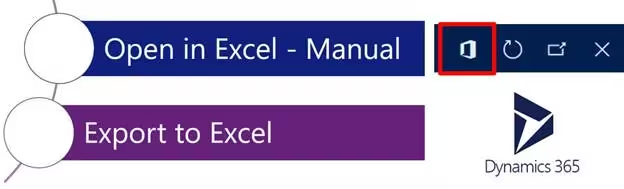
Overview of the “Open in Excel” Feature in D365FO
In Dynamics 365 Finance and Operation, Microsoft provides an Open in Excel feature to all the forms where details masters and simple list patterns are applied. It is an out-of-the-box functionality that checks If any data entity exists which have the same root data source as the current form.
Reference: In the All Customers form, the root data source is Custtable and CustCustomerV2Entity also has the same root data source, So the Open in Excel feature exists on this form which opens the data in Excel where you can modify, delete or add new data using Excel Add-in.

You can also add/remove options in this dialog by setting the visibility and creating more data entities having the same root data source as the form.
“Business operations frequently require custom menu options that export only active cursor records or filtered user selections, preventing unconstrained full-table downloads.”
Problem Statement: Filtered Record Export
Need to add a custom menu option that exports filtered records that are selected.
Resolution: Step-by-Step Implementation
You need to perform the following steps,
1. Implement Interface
Implement the OfficeIGeneratedWorkbookCustomExporter interface on your custom form.
2. Write Context Method
Write your code in the getDataEntityContext(OfficeGeneratedExportMenuItem _menuItem) method.
3. Get Entity Context
Get the ExportToExcelDataEntityContext object for your entity.
4. Apply Dynamic Filter
Use its filter method to apply your filter via ExportToExcelFilterTreeBuilder.
Complete X++ Implementation Code
Below is the complete implementation code for the custom form class:
public class OpenSalesOrderForm extends FormRun implements OfficeIGeneratedWorkbookCustomExporter
{
    OfficeGeneratedExportMenuItem   filteredEntityMenuItem;

    public void customizeMenuOptions(OfficeMenuOptions _menuOptions)
    {
        filteredEntityMenuItem = OfficeGeneratedExportMenuItem::construct(tableStr(FilteredSOEntity), 'FilteredSOTable');
        filteredSOEntityMenuItem.displayName(strFmt('Filtered SO Table (%1)', curExt()));

        var dataEntityEnumerator = _menuOptions.dataEntityOptions().getEnumerator();

        while (dataEntityEnumerator.moveNext())
        {
            OfficeMenuDataEntityOptions dataEntityOptions = dataEntityEnumerator.current();

            if (dataEntityOptions.dataEntityName() == tableStr(FilteredSOEntity) )
            {
                dataEntityOptions.includeDefault(false);
            }
        }

        _menuOptions.customMenuItems().addEnd(filteredEntityMenuItem);

        filteredEntityMenuItem.visible(true);
    }

    ExportToExcelDataEntityContext getDataEntityContext(OfficeGeneratedExportMenuItem _menuItem)
    {
        SalesTable salesTableLocal = salesTable_ds.cursor();

        ExportToExcelDataEntityContext context = ExportToExcelDataEntityContext::constructDefault(literalStr(FilteredSOEntity));

        ExportToExcelFilterTreeBuilder filterBuilder = new ExportToExcelFilterTreeBuilder(_menuItem.dataEntityName());

        ListEnumerator entities = context.entities().getEnumerator();
        while (entities.moveNext())
        {
            if (entities.current().entityName() == _menuItem.dataEntityName())
            {
                entities.current().filter(filterBuilder.and(filterBuilder.companyFilter(),
                filterBuilder.areEqual(fieldStr(FilteredSOEntity, SalesId), salesTableLocal.SalesId)));
                break;
            }
        }
        return context;
    }
}
Build Solution
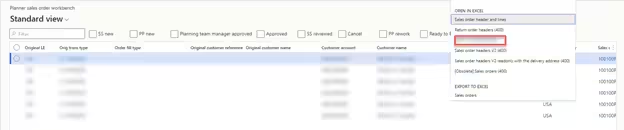
After building/re-building your solution in Visual Studio, you will be able to see the custom option in Open-In Excel and the out of the box option will be unavailable.

Verification in Microsoft Excel
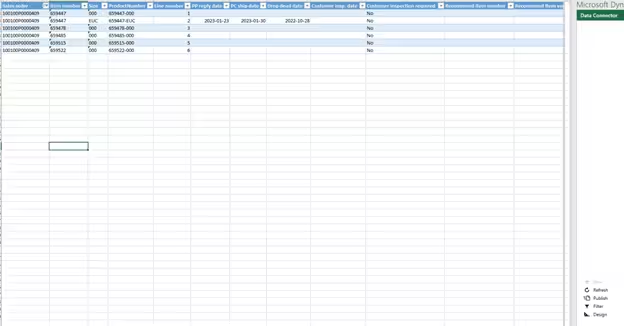
After clicking this option, you will be asked to download the Excel, and after opening the downloaded excel you will only see the filtered records in the Excel Sheet.