
- Print Management Framework: How Dynamics 365 Finance & Operations standardizes document routing, destination settings, and report layouts across business modules.
- Document Type Identification: Querying the
PrintMgmtReportFormatdatabase table to discover the system document type underlying standard report designs. - Delegate Extension Approach: Subscribing to
PrintMgmtDocType.getDefaultReportFormatDelegateto dynamically assign custom SSRS report designs. - Chain of Command (CoC) Alternative: Extending
PrintMgmtReportFormatPopulator.addDocuments()to populate custom report designs into the setup selector. - End-to-End Validation: Building and synchronizing the solution in Visual Studio and selecting the custom format in the Print Management hierarchy.

Overview: What is Print Management in D365FO?
In this article, we will look at how we can call our custom report using Print Management.
What is print management? Print management in D365 FO X++ is a powerful tool for managing and customizing your report designs. It provides a flexible way to control how your reports are printed, generated, and distributed across departments and external partners.
Most of the time we would get the requirement to get the custom business document/report in the Print management form setup. To fulfil this requirement, first of all we would create the design as we have created in our previous article. In this article, we add our custom report design for the project invoice proposal format in the print management form setup.
By default, there is the attached design in the setup if we go to the following standard navigation path in the application:
Project management and accounting > Setup > Forms > Form setup > Print Management > Project invoice without billing rules
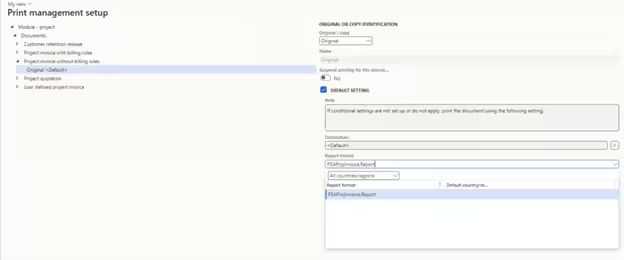
“Print Management in Dynamics 365 F&O provides a robust, non-intrusive extensibility framework, allowing developers to inject custom SSRS report designs seamlessly through delegates or Chain of Command.”
Discovering the Underlying Document Type
To add a custom design, firstly we have to find the document type beyond that design. We can inspect the underlying records directly by executing a query in SQL Server Management Studio against the PrintMgmtReportFormat table:
select * from PrintMgmtReportFormat
where name = 'PSAProjInvoice.Report'
Once you identify the document type associated with the report format, there are two different ways to call our custom design using print management form setup:
- Using Event Handler (Delegate Subscription)
- Using Chain of Command (CoC Extension)
PrintMgmtDocType.getDefaultReportFormatDelegate. Lightweight, straightforward implementation ideal for targeting specific document types with clean case evaluation.
PrintMgmtReportFormatPopulator.addDocuments using next call and this.addOther(). Integrates seamlessly into the report populator pipeline for modular, long-term extensibility.
Method 1: Implementation Using Event Handler
The event handler approach hooks into the standard delegate exposed by the Print Management framework. Follow these implementation steps:
Step # 1: Copy the event handler of the getDefaultReportFormatDelegate method of the PrintMgmtDocType class and subscribe to its event handler.
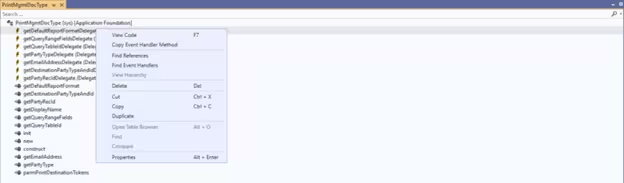
Step # 2: Create a new class and paste it. After it, add logic in the method to call our custom report:
internal final class MDPrintMgmtDocTypeHandler
{
    [SubscribesTo(classStr(PrintMgmtDocType), delegateStr(PrintMgmtDocType, getDefaultReportFormatDelegate))]
    public static void PrintMgmtDocType_getDefaultReportFormatDelegate(PrintMgmtDocumentType _docType, EventHandlerResult _result)
    {
        switch (_docType)
        {
            case PrintMgmtDocumentType::SIProjInvoice:
                _result.result(ssrsReportStr(MDPSAProjInvoice, Report));
                break;
        }
    }
}
Method 2: Implementation Using Chain of Command
Alternatively, you can utilize the modern Chain of Command (CoC) pattern to extend the report populator class.
Step # 1: We need to create a Chain of Command extension of the addDocuments method of the PrintMgmtReportFormatPopulator class:
[ExtensionOf(classStr(PrintMgmtReportFormatPopulator))]
public final class MDPrintMgmtReportFormatPopulator_Extension
{
    protected void addDocuments()
    {
        #ISOCountryRegionCodes
        #PrintMgmtSetup

        next addDocuments();

        // Add new customized document
        this.addOther(PrintMgmtDocumentType::SIProjInvoice, ssrsReportStr(MDPSAProjInvoice, Report), ssrsReportStr(MDPSAProjInvoice, Report), #NoCountryRegionId);
    }
}
Build Solution & Form Setup Verification
Result: After building and synchronizing the solution in Visual Studio, navigate back to the D365FO client:
Project management and accounting > Setup > Forms > Forms setup > Print management > Project invoice without billing rules
Expand the Report format dropdown list. You will now observe that your newly customized SSRS report design (MDPSAProjInvoice.Report) is available for selection.
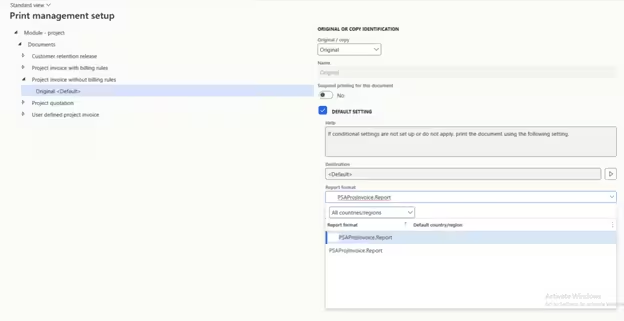
Once selected and saved, all invoice proposals printed under this rule will automatically render using your custom SSRS report layout while preserving all standard print destinations (printer, email, screen, file archive).