- End-to-End Cheque Pipeline: Extending the Vendor Payment Journal form, standard SSRS report, and dynamic runtime slip text without modifying core code.
- Table & Form Extensions: Adding a custom
Memofield toLedgerJournalTransand exposing it directly within the lines grid ofLedgerJournalTransVendPaym. - Report Controller & Data Provider: Implementing Chain of Command on
ChequeController.determineReportMenuOutputand populatingChequeTmp.MemoinChequeDP.populateChequeTmp. - Bank Payment Transaction Persistence: Extending
BankChequePaymTranswith a customDescriptionpopulated viaCustVendCheque. - Runtime Dynamic Slip Text: Customizing
CustVendChequeSlipTextCalculatormethods usingstrLFixandstrRFixstring padding to format bank details, column headers, and totals.

Overview: Customizing Vendor Payments & Bank Cheques in D365FO
In this article, we will customize the Vendor Payment Journal form and Bank Cheque Payment report in Dynamics 365 Finance & Operations.
Specifically, we will add a custom Memo field to the Vendor Payment Journal form, carry that field into the cheque report dataset, and customize the slip text area of the cheque printing report which is generated dynamically at runtime.
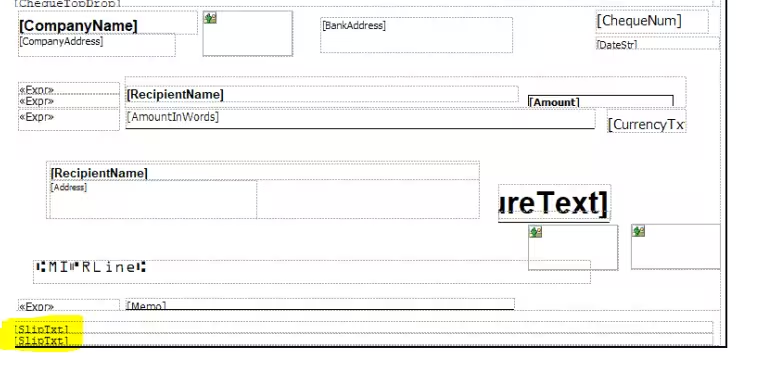
To fulfil the requirement, we will follow a systematic multi-tier extension pattern across the database schema, user interface forms, SSRS reporting pipeline, and slip text calculation engine.
“Bank cheque printing in Dynamics 365 F&O requires precision across both static SSRS layouts and dynamically calculated monospace slip text. Chain of Command enables clean customization without touching standard code.”
LedgerJournalTrans and ChequeTmp, coupled with non-intrusive Chain of Command (CoC) methods wrapping ChequeController, ChequeDP, and CustVendChequeSlipTextCalculator.
Step 1 & 2: Adding Custom Fields to Table and Form
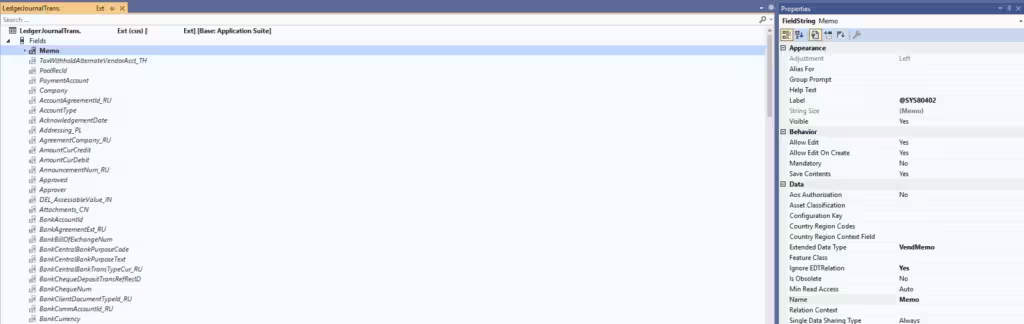
Step # 1: We will create an extension of the LedgerJournalTrans table and then add the custom field Memo to it:
Step # 2: We will create an extension of the form LedgerJournalTransVendPaym (Vendor Payment Journal) and drag the Memo field into the lines grid from the LedgerJournalTrans datasource:
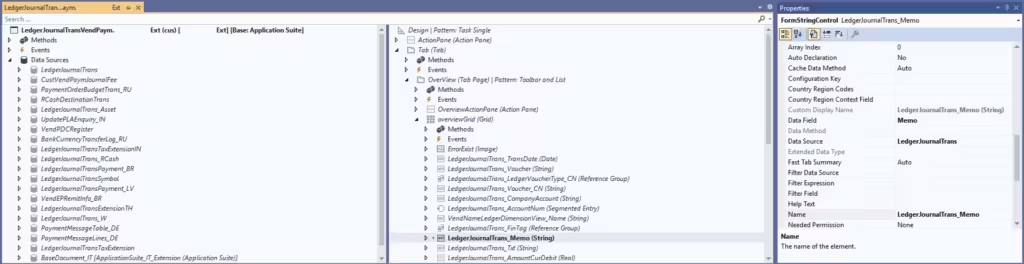
Note: The custom field is successfully added to the form. Now we will add this field to the cheque report pipeline.
Step 3, 4 & 5: Cheque Controller and Data Provider Extensions
Step # 3: We will create a Chain of Command (CoC) extension of the determineReportMenuOutput method in the ChequeController class to call our custom design of the cheque report:
[ExtensionOf(classStr(ChequeController))]
internal final class HMChequeController_Extension
{
    protected str determineReportMenuOutput(ChequeFormType _chequeFormType, BankChequeLayout _bankChequeLayout)
    {
        str chequeReport = next determineReportMenuOutput(_chequeFormType, _bankChequeLayout);

        if (chequeReport == 'Cheque_US.Report')
        {
            chequeReport = ssrsReportStr(HMCheque_US, Report);
        }
        return chequeReport;
    }
}
Step # 4: We will create an extension of the ChequeTmp table and add the Memo field to it as well:
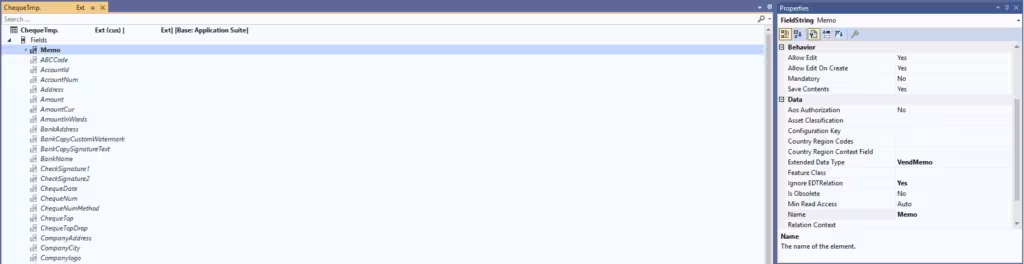
Step # 5: We need to create a CoC extension of the populateChequeTmp method of class ChequeDP to populate the Memo field in the ChequeTmp table:
[ExtensionOf(classStr(ChequeDP))]
internal final class MDChequeDP_Extension
{
    protected void populateChequeTmp()
    {
        next populateChequeTmp();

        chequeTmp.Memo = LedgerJournalTrans::findRecId(tmpChequePrintout.TransactionRecId, false).Memo;
    }
}
Note: The Memo field has been successfully added to the form and report dataset. Now we have to customize the slip text area of the report which is created dynamically at runtime.
Step 6 & 7: Bank Cheque Payment Transaction Setup
Step # 6: We will create an extension of the BankChequePaymTrans table and add the custom field Description to it:
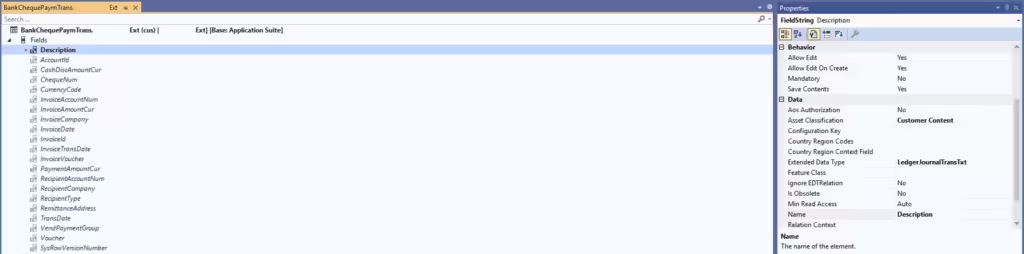
Step # 7: We need to create a CoC extension of the initBankChequePaymentTransFromVendTrans method of class CustVendCheque to fill the Description field, as this field must be populated from the ledger transaction text of the vendor payment:
[ExtensionOf(classStr(CustVendCheque))]
internal final class MDCustVendCheque_Extension
{
    protected BankChequePaymTrans initBankChequePaymentTransFromVendTrans(SpecTrans _specTrans, CustVendPaym _custVendPaym, AmountCur _paymAmount)
    {
        BankChequePaymTrans bankChequePaymTrans;

        bankChequePaymTrans = next initBankChequePaymentTransFromVendTrans(_specTrans, _custVendPaym, _paymAmount);

        bankChequePaymTrans.Description = _custVendPaym.ledgerJournalTrans().Txt;
        return bankChequePaymTrans;
    }
}
Step 8: Dynamic Slip Text Area Customization
Step # 8: Now we will create a CoC extension across different methods of the CustVendChequeSlipTextCalculator class to customize the dynamic slip text area:
[ExtensionOf(classStr(CustVendChequeSlipTextCalculator))]
internal final class MDCustVendChequeSlipTextCalculator_Extension
{
    public container determineSlipTextTitleAndEndLinesAdjustmentForChequeRecipientType(BankChequeTable _bankChequeTable, ChequeFormType _chequeFormType)
    {
        ChequeSlipTxt chequeSlipText;
        Counter endLines;

        BankAccountTable bankAccountTable = BankAccountTable::find(_bankChequeTable.AccountID, false);

        [chequeSlipText, endLines] = next determineSlipTextTitleAndEndLinesAdjustmentForChequeRecipientType(_bankChequeTable, _chequeFormType);

        switch (_bankChequeTable.RecipientType)
        {
            case BankChequeRecipientType::Vend:
                chequeSlipText += (bankAccountTable
                                ? strFmt('
%1 : %2', "@SYS40757", bankAccountTable.Name)
                                : strFmt('
%1 : ', "@SYS40757"));
                break;
        }
        return [chequeSlipText, endLines];
    }

    public container determineSlipTextTitleAndEndLinesAdjustmentForColumnHeaders(BankChequeTable _bankChequeTable, ChequeFormType _chequeFormType)
    {
        ChequeSlipTxt chequeSlipText;
        Counter endLines;

        [chequeSlipText, endLines] = next determineSlipTextTitleAndEndLinesAdjustmentForColumnHeaders(_bankChequeTable, _chequeFormType);

        switch (_chequeFormType)
        {
            case ChequeFormType::USStyle:
                chequeSlipText = strFmt(
                    '


%1       %2        %3                           %4  %5

',
                    "@SYS14204", "@SYS80056", "@SYS41042", "@SYS11818", "@SYS1943");
                endLines = -2;
                break;
        }
        return [chequeSlipText, endLines];
    }

    protected container determineSlipTextAndEndLinesAdjustmentForBankChequePaymTrans(BankChequePaymTrans bankChequePaymTrans)
    {
        ChequeSlipTxt chequeSlipText;
        Counter endLines;

        [chequeSlipText, endLines] = next determineSlipTextAndEndLinesAdjustmentForBankChequePaymTrans(bankChequePaymTrans);

        FromDate invoiceDate = bankChequePaymTrans.InvoiceDate;
        chequeSlipText = strFmt(
                '%1  %2  %3  %4  %5
',
                strLFix(bankChequePaymTrans.InvoiceId, 12),
                strLFix(date2StrUsr(invoiceDate), 10),
                strLFix(bankChequePaymTrans.Description, 36),
                strRFix(num2str(-bankChequePaymTrans.InvoiceAmountCur, 0, 2, -1, -1), 12),
                strRFix(num2str(-bankChequePaymTrans.PaymentAmountCur, 0, 2, -1, -1), 14));
        endLines = -1;
        return [chequeSlipText, endLines];
    }

    protected CustVendChequeSlipTextCalcDeterminSlipTextForTotalReturn determineSlipTextTitleAndEndLinesForSubTotalOrTotal(CustVendChequeSlipTextCalcDeterminSlipTextForTotalParameters _args)
    {
        CustVendChequeSlipTextCalcDeterminSlipTextForTotalReturn totalReturn = CustVendChequeSlipTextCalcDeterminSlipTextForTotalReturn::construct();

        totalReturn = next determineSlipTextTitleAndEndLinesForSubTotalOrTotal(_args);

        totalReturn.chequeSlipTxt = strFmt(
                '
%1 %2',
                strLFix(_args.chequeSlipTxtLabel, 75),
                num2str(_args.TotalAmountCur, 16, 2, -1, -1));
        totalReturn.endLines = -1;
        return totalReturn;
    }
}
Note: The functions strLFix and strRFix are used to apply precise whitespace padding to the left and right of strings, aligning columns in the monospace slip text layout.
Method Breakdown:
Recipient Type Adjustment
determineSlipTextTitleAndEndLinesAdjustmentForChequeRecipientType: Concatenates Bank Account details directly into the slip text header.
Column Headers
determineSlipTextTitleAndEndLinesAdjustmentForColumnHeaders: Customizes header column titles and inserts the Description label.
Line Items Formatting
determineSlipTextAndEndLinesAdjustmentForBankChequePaymTrans: Formats invoice detail rows with custom description and numeric amounts.
Totals Alignment
determineSlipTextTitleAndEndLinesForSubTotalOrTotal: Shifts and aligns the subtotal/total figures to match new column widths.
Final Cheque Output & Verification
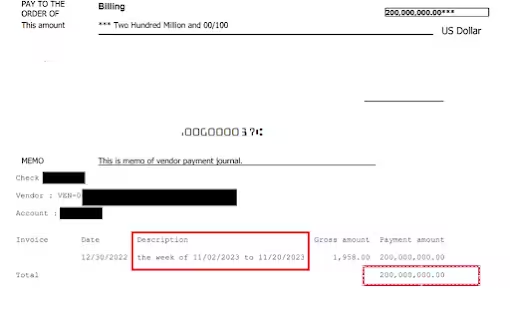
After building and synchronizing the solution in Visual Studio, generate a vendor payment cheque. The output renders with all custom fields, modified report design, and formatted slip text: