- OData v4 REST Protocol: Leveraging standard OData endpoints exposed natively by Microsoft Dynamics 365 Finance & Operations.
- OData Connected Service Tooling: Generating strongly-typed C# client proxy classes from the D365FO
$metadataendpoint within Visual Studio. - Microsoft Authentication Library (MSAL): Implementing
OAuthHelperto authenticate against Microsoft Entra ID (Azure AD) via Client Credentials. - Modular Multi-Project Solution: Decoupling the OData proxy library, authentication utility, and executable console client for maximum reusability.
- CRUD Data Operations: Querying, creating, updating, and filtering ERP business data with full compile-time type safety in C#.

Prerequisites: Azure AD App Registration
Before connecting a external .NET application to Dynamics 365 Finance & Operations, you must register a confidential client application in Microsoft Entra ID (Azure AD).
Navigate to portal.azure.com, register a new App, generate a Client Secret, grant API permissions for Dynamics ERP, and map the Client ID inside D365FO under System administration > Setup > Microsoft Entra ID applications.
“Generating strongly-typed OData client proxies accelerates .NET development, eliminates runtime JSON serialization bugs, and provides full IntelliSense over D365FO data entities.”
Step 1: Create a .NET Framework Library Project
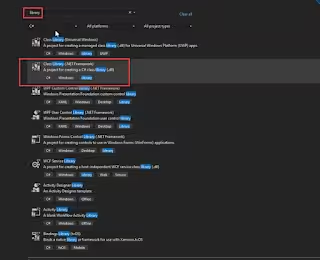
Open Visual Studio and create a new Class Library (.NET Framework) project. This project will house our generated OData client proxy classes:

Step 2: Install OData Connected Service Extension
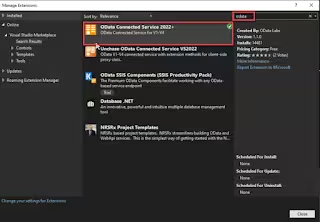
Navigate to Extensions > Manage Extensions in Visual Studio. Search for OData Connected Service and click Download / Install:

Note: To finalize installation, restart Visual Studio to allow the VSIX installer wizard to apply the extension:
Step 3: Add Connected Service & Generate Proxies
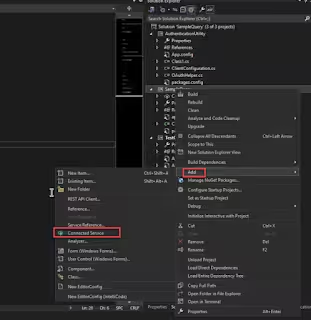
Right-click the library project in Solution Explorer, select Add > Connected Service, and choose OData Connected Service:
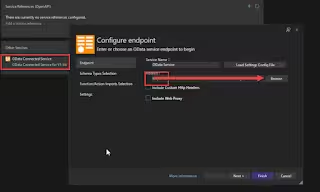
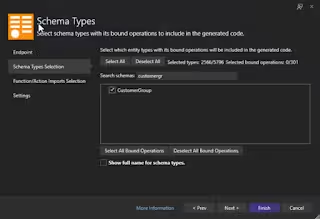
Enter the metadata URL of your D365FO instance formatted as https://[YourDynamicsURL]/data/$metadata. The wizard parses the entity schema and generates strong C# entity types and context classes:
Step 4 & 5: Nuget Packages & OAuth Helper Setup
Open Manage NuGet Packages for your solution and install the required Microsoft Identity and OData client dependencies:
Create an authentication library containing the OAuthHelper class responsible for acquiring Bearer tokens from Microsoft Entra ID:
using System;
using System.Collections.Generic;
using System.Linq;
using System.Text;
using System.Threading.Tasks;

namespace AuthenticationUtility
{
    public partial class ClientConfiguration
    {
        public static ClientConfiguration Default
        {
            get { return ClientConfiguration.OneBox; }
        }

        public static ClientConfiguration OneBox = new ClientConfiguration()
        {
            // You only need to populate this section if you are logging on via a native app.
            // For Service to Service scenarios in which you e.g. use a service principal you don't need that.
            UriString = "environment Url",
            // UserName = "",
            // Password = "",
            ActiveDirectoryResource = "environment Url",
            ActiveDirectoryTenant = "https://login.microsoftonline.com/Tenat_ID",
            // You can find your tenant from Azure portal
            ActiveDirectoryClientAppId = "Client ID from Azure",
            // Insert here the application secret when authenticating with AAD by the application
            ActiveDirectoryClientAppSecret = "Secret ID from Azure",
            // Change TLS version of HTTP request from the client here
            // Ex: TLSVersion = "1.2"
            // Leave it empty if you want to use the default version
            TLSVersion = ""
        };

        public string TLSVersion { get; set; }
        public string UriString { get; set; }
        // public string UserName { get; set; }
        // public string Password { get; set; }
        public string ActiveDirectoryResource { get; set; }
        public string ActiveDirectoryTenant { get; set; }
        public string ActiveDirectoryClientAppId { get; set; }
        public string ActiveDirectoryClientAppSecret { get; set; }
    }
}
Step 6: Executable Console Client & CRUD Execution
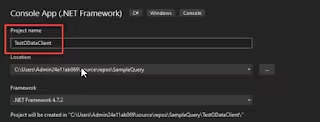
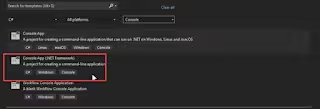
Finally, create a Console App (.NET Framework) project. Reference the OData proxy library and authentication library, instantiate the Resources context, hook the authorization header, and query your D365FO data entities:
using AuthenticationUtility;
using Microsoft.IdentityModel.Clients.ActiveDirectory;
using System;
using System.Collections.Generic;
using System.Linq;
using System.Text;
using System.Threading.Tasks;
//using Microsoft.Identity.Client;
namespace AuthenticaitionUtility
{
    public class OAuthHelper
    {
        public const string OAuthHeader = "Authorization";
        ///
        /// Retrieves an authentication header from the service.
        ///
        /// The authentication header for the Web API call.
        public static string GetAuthenticationHeader(bool useWebAppAuthentication)
        {
            string aadTenant = ClientConfiguration.Default.ActiveDirectoryTenant;
            string aadClientAppId = ClientConfiguration.Default.ActiveDirectoryClientAppId;
            string aadClientAppSecret = ClientConfiguration.Default.ActiveDirectoryClientAppSecret;
            string aadResource = ClientConfiguration.Default.ActiveDirectoryResource;
            AuthenticationContext authenticationContext = new AuthenticationContext(aadTenant, false);
            AuthenticationResult authenticationResult = null;
            // OAuth through application by application id and application secret.
            if (useWebAppAuthentication)
            {
                if (string.IsNullOrEmpty(aadClientAppSecret))
                {
                    Console.WriteLine("Please fill AAD application secret in ClientConfiguration if you choose authentication by the application.");
                    throw new Exception("Failed OAuth by empty application secret.");
                }
                try
                {
                    var creadential = new ClientCredential(aadClientAppId, aadClientAppSecret);
                    authenticationResult = authenticationContext.AcquireTokenAsync(aadResource, creadential).Result;
                }
                catch (Exception ex)
                {
                    Console.WriteLine(string.Format("Failed to authenticate with AAD by application with exception {0} and the stack trace {1}", ex.ToString(), ex.StackTrace));
                    throw new Exception("Failed to authenticate with AAD by application.");
                }
            }
            //else
            //{
            //    // OAuth through username and password.
            //    //string username = ClientConfiguration.Default.UserName;
            //    //string password = ClientConfiguration.Default.Password;
            ////    if (string.IsNullOrEmpty(password))
            ////    {
            ////        Console.WriteLine("Please fill user password in ClientConfiguration if you choose authentication by the credential.");
            ////        throw new Exception("Failed OAuth by empty password.");
            ////    }
            ////    try
            ////    {
            ////        // Get token object
            ////        var userCredential = new UserPasswordCredential(username, password);
            ////        authenticationResult = authenticationContext.AcquireTokenAsync(aadResource, aadClientAppId, userCredential).Result;
            ////    }
            ////    catch (Exception ex)
            ////    {
            ////        Console.WriteLine(string.Format("Failed to authenticate with AAD by the credential with exception {0} and the stack trace {1}", ex.ToString(), ex.StackTrace));
            ////        throw new Exception("Failed to authenticate with AAD by the credential.");
            ////    }
            //}
            // Create and get JWT token
            return authenticationResult.CreateAuthorizationHeader();
        }
    }
}
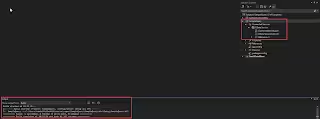
Execution & Output: Run the console application. The application authenticates via Entra ID, submits the OData query to D365FO, and outputs the retrieved records with full transactional integrity: