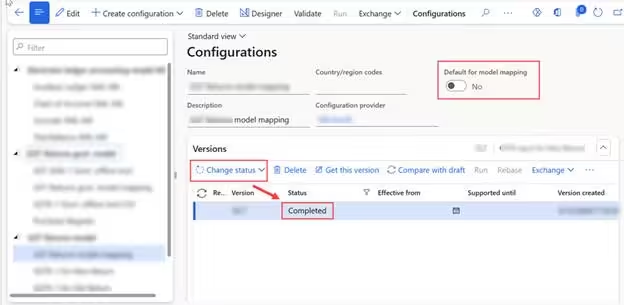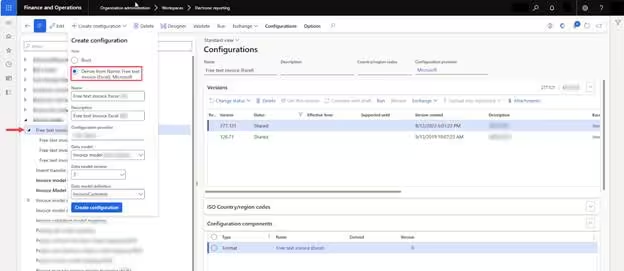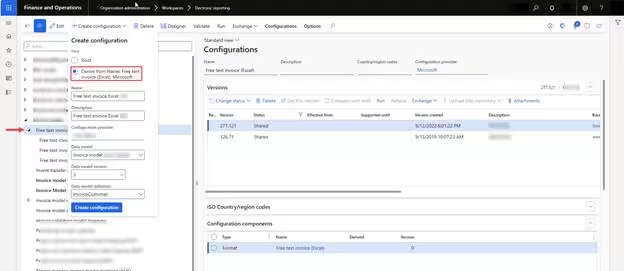
- No-Code Enterprise Reporting: Electronic Reporting (ER) allows creating, configuring, and updating business documents without X++ development.
- Core Component Triad: Clear decoupling between the business Data Model, Model Mapping (binding to ERP tables), and Format (Excel, XML, PDF).
- Regulatory Configuration Services (RCS): Synchronizing standard Microsoft repositories to import baseline formats and establish version control.
- Inherited Configuration Pattern: Deriving custom models from Microsoft standard models to maintain clean upgradeability during monthly updates.
- Extending Data Structures: Adding custom child nodes, calculated formulas, and formatting rules directly within the browser designer.

Introduction & Data Flow Architecture
Electronic Reporting (ER) is a configurable no-code reporting framework natively integrated into Dynamics 365 Finance & Operations. It allows business analysts and developers to create and maintain document structures directly without requiring code deployment.
ER separates report design into three modular components:
- Data Model: Represents the domain-specific business data structure (independent of the underlying database schema).
- Model Mapping: Maps the conceptual data model to D365FO tables, views, and data entities at runtime.
- Format Component: Defines the external document representation (Excel workbook, XML payload, JSON, or PDF document).
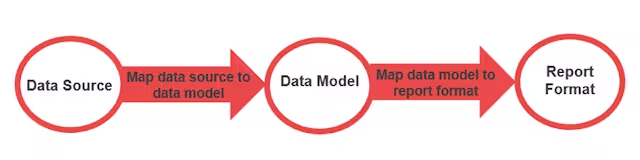
“The true power of Electronic Reporting is separating the business data contract from the presentation format. One data model can seamlessly feed multiple Excel, XML, and PDF formats.”
Configuring Repository & Baseline Configurations
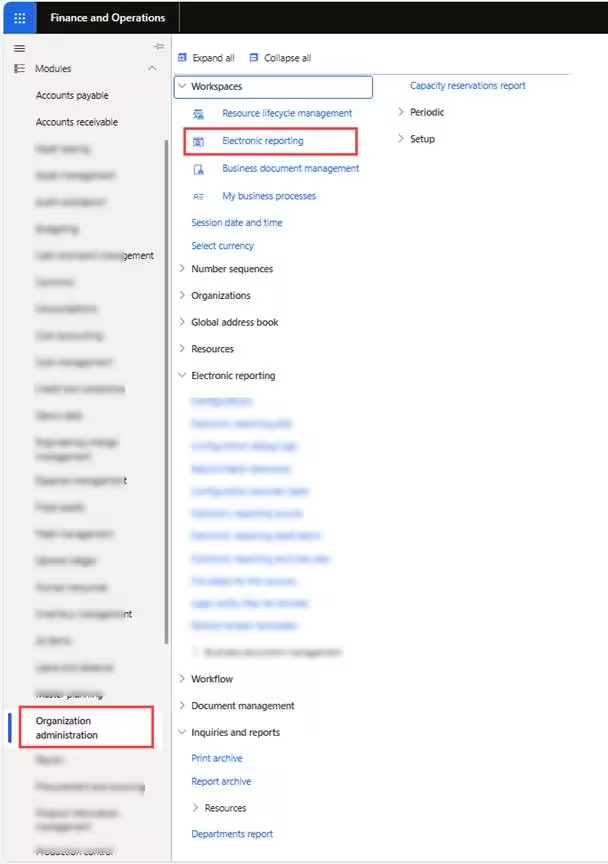
Before creating custom configurations, navigate to Organization administration > Workspaces > Electronic reporting:
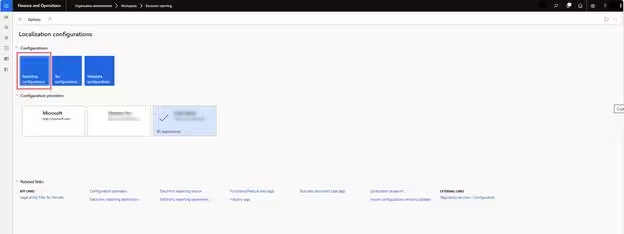
Open Reporting configurations to inspect existing repositories and import Microsoft standard configurations:
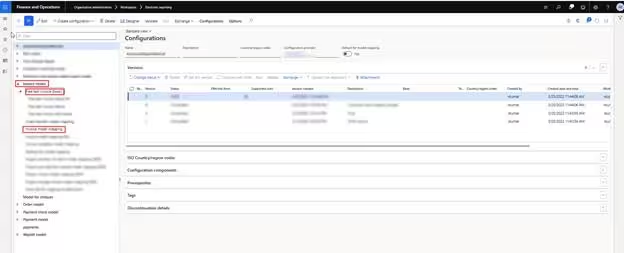
Creating a Derived Data Model
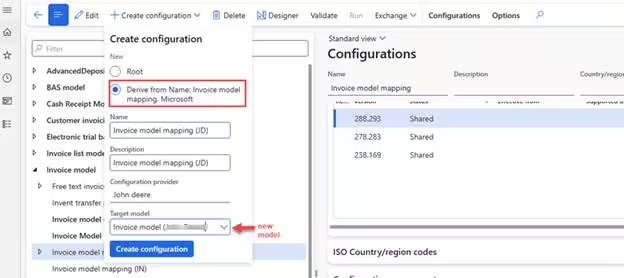
To customize without breaking standard upgrade paths, select the standard model and click Create configuration > Derive from Name:
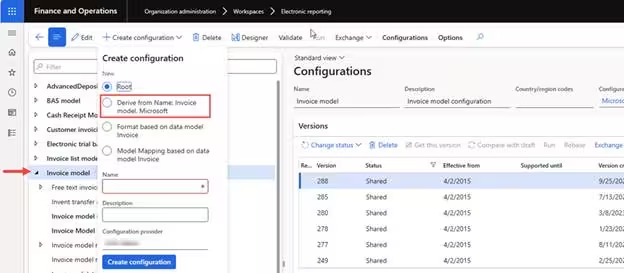
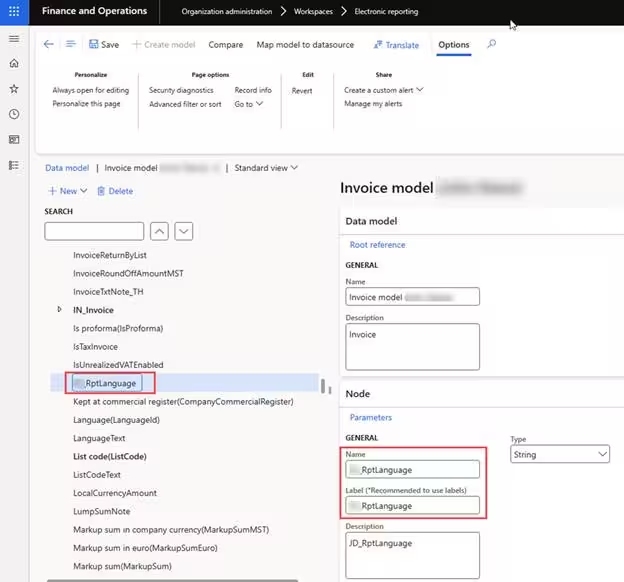
Open the Designer to begin expanding the data structure. Click New to add child nodes or attributes to active elements:
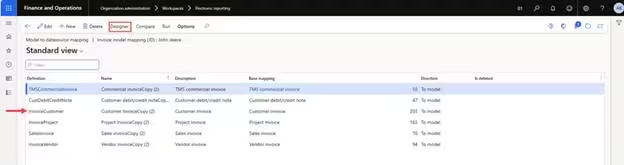
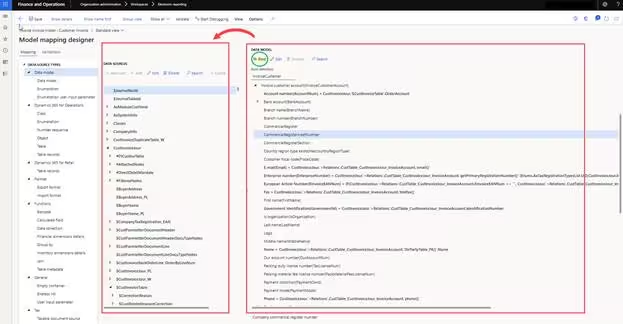
Configuring Model Mapping to ERP Data Sources
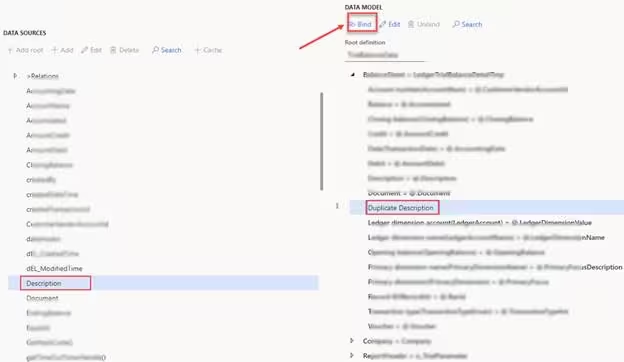
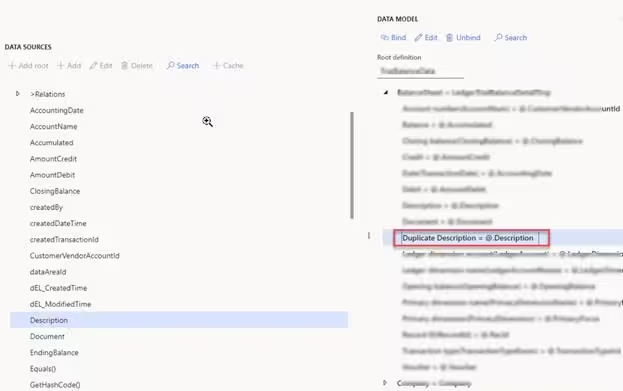
Once your data model is extended, switch to the Model to datasource mapping view. Bind your new fields to the underlying D365FO tables or calculated expressions:
Format Designer & Document Generation
Finally, create a derived Format configuration based on your extended model. Use the visual Format Designer to map your data model fields to Excel cells, XML tags, or PDF form fields: