- Near-Real-Time Data Streaming: Exporting operational D365FO tables to Azure Data Lake Storage (ADLS) Gen2 using Change Data Capture (CDC).
- Common Data Model (CDM) Standards: Organizing enterprise entity files into structured, self-describing CDM folder hierarchies.
- Cost-Effective Analytics: Replacing costly relational BYOD SQL databases with petabyte-scale cloud data lake storage.
- LCS Add-In Architecture: Provisioning and managing the Export to Data Lake microservice directly via Lifecycle Services.
- Downstream BI Enablement: Querying data lake entities seamlessly via Azure Synapse serverless SQL pools and enterprise Power BI datasets.

Overview: Enterprise Data Lake Architecture
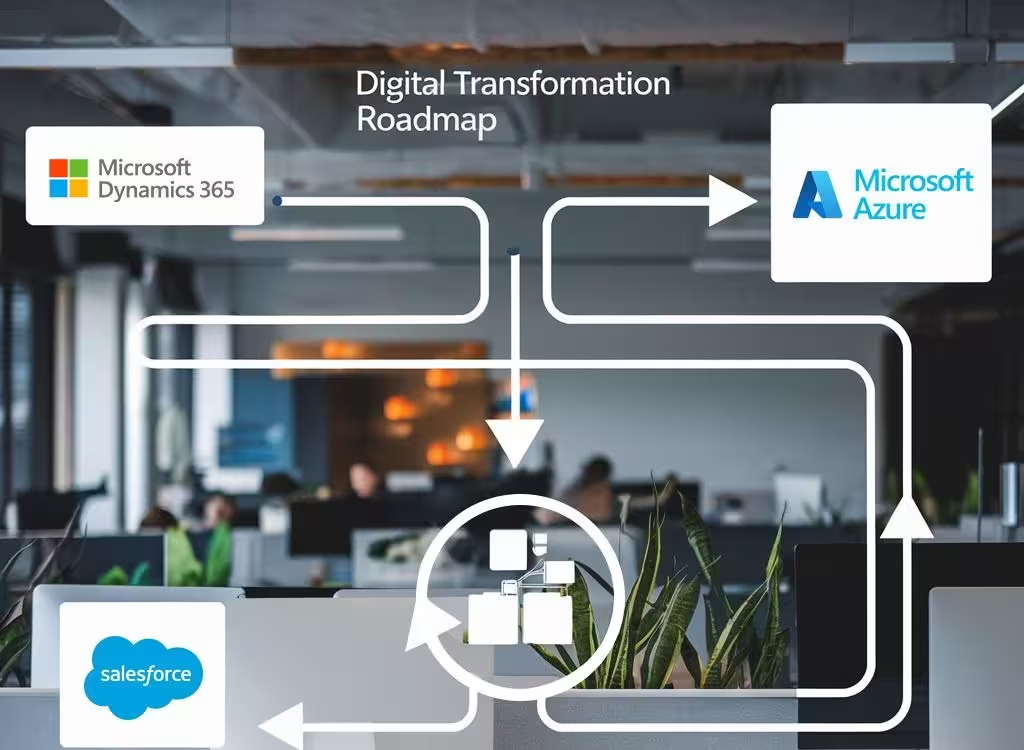
In this post, we will review the integration between Dynamics 365 Finance & Operations and Azure Data Lake. We will explore how to configure the Data Lake feature, activate synchronization for tables and entities, understand how data is stored in Data Lake Gen2 storage, and access this data using Azure Synapse Analytics and Power BI.
“Export to Azure Data Lake fundamentally decouples analytics from transactional ERP databases, enabling near-real-time Power BI reporting with zero impact on operational user performance.”
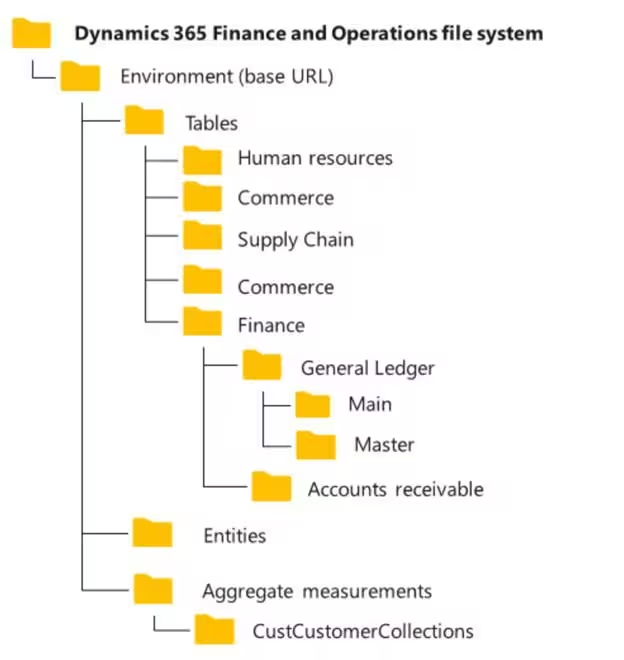
Common Data Model (CDM) Folder Structure
Data is stored in Data Lake to comply with the Common Data Model (CDM) folder standard. The hierarchical namespace organizes objects and CSV files into a structured directory tree for high-performance analytics:
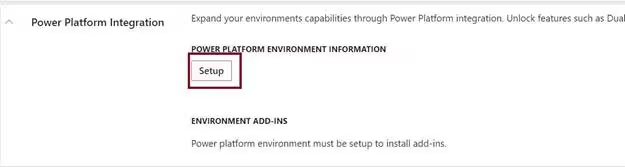
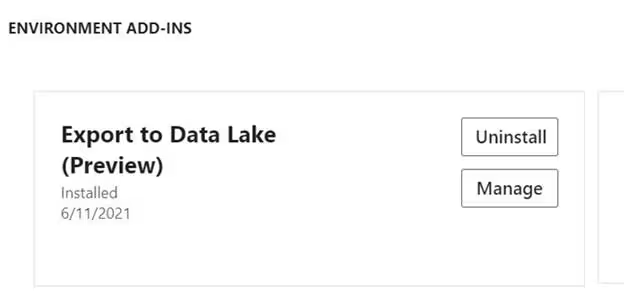
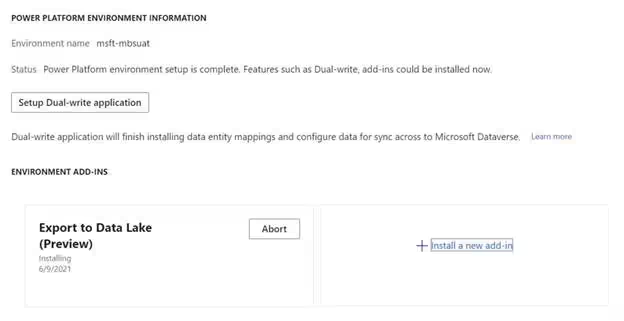
Configuring the Data Lake Add-In in LCS
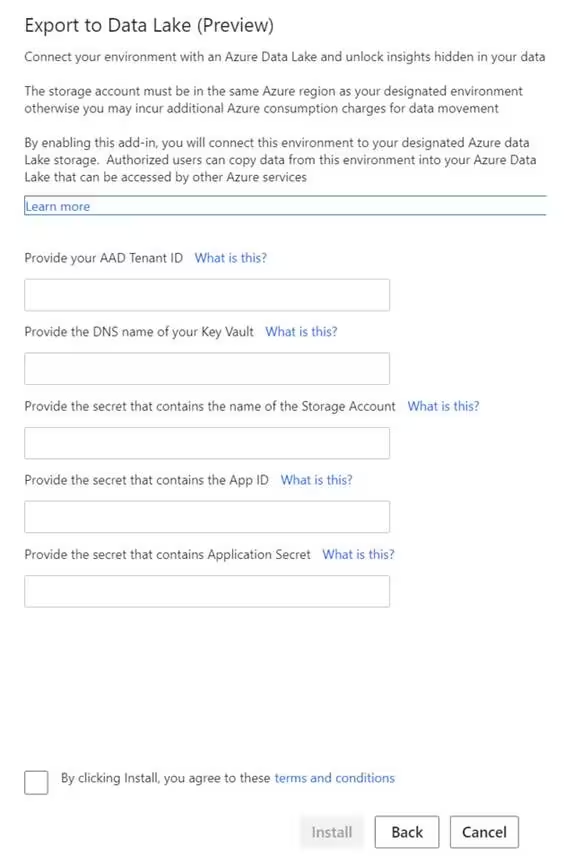
Integration with Azure Data Lake is delivered as an add-in installable from Microsoft Dynamics Lifecycle Services (LCS). Under environment management, install the Export to Data Lake add-in and bind your Azure KeyVault and Storage Account:
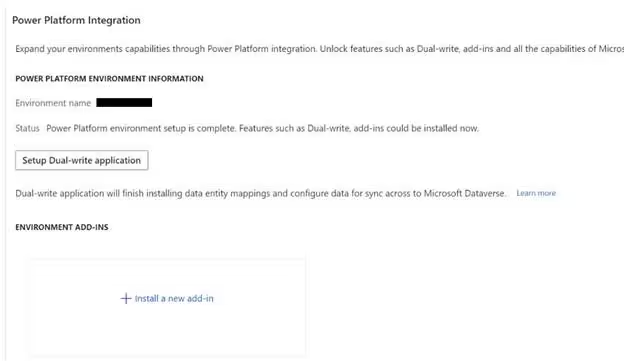
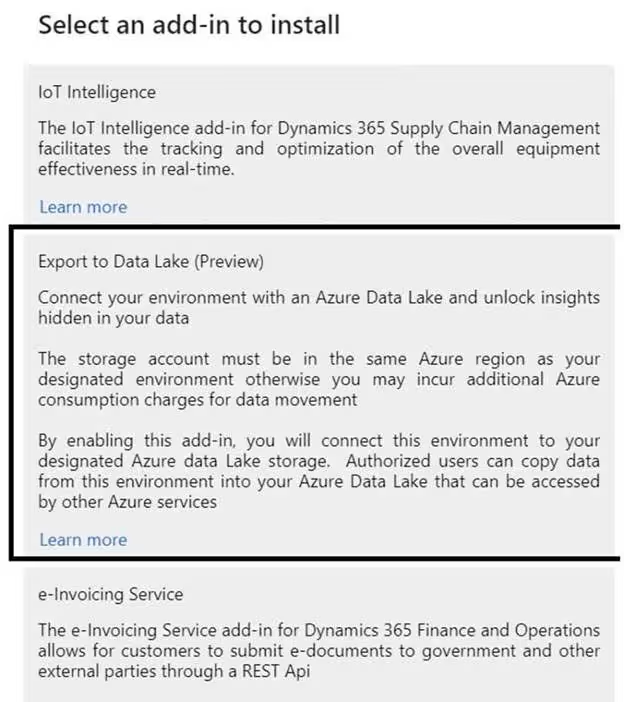
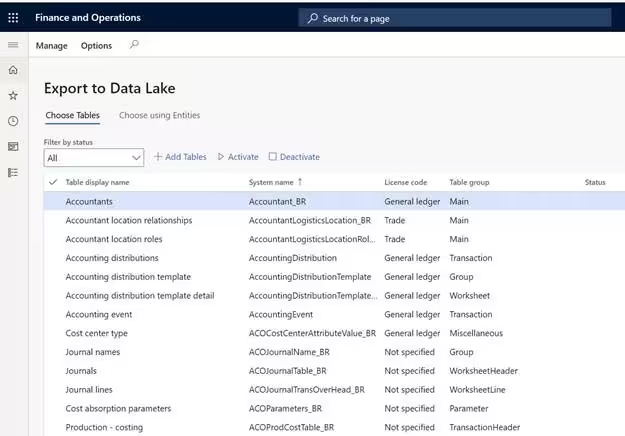
Activating Table Synchronization in D365FO
Open D365FO and navigate to System administration > Setup > Export to Data Lake. Select the database tables and data entities you wish to synchronize, and click Activate:
Consuming Data in Azure Synapse & Power BI
Once data flows into your storage container, open Azure Synapse Analytics Studio. Serverless SQL pools allow you to query the CDM folders directly using standard T-SQL, without provisioning expensive dedicated database instances: