- Application Lifecycle Management (ALM): Executing governed code promotions to Tier-2+ Standard Acceptance Testing (UAT) environments.
- LCS Asset Library Centralization: Storing binary software deployable packages generated by Azure DevOps build pipelines.
- Environment Readiness Gates: Pre-deployment validation ensuring environments are in a healthy, running state before servicing.
- Maintenance Window Automation: Applying updates, tracking step-by-step database synchronization, and monitoring service transitions.
- Rollback & Telemetry Safeguards: Accessing detailed deployment logs and release validation metrics directly within LCS.

Overview: Lifecycle Services (LCS) Deployment
In this blog, we will learn how to deploy a specific software deployable package to the Microsoft Dynamics Lifecycle Services (LCS) Standard Acceptance Testing (UAT) environment.
Deploying through LCS ensures code changes are applied consistently across all server scale units, executes database synchronization, and maintains strict release auditing before production sign-off.
“Governed ALM through Lifecycle Services eliminates manual binary deployments, ensures consistent DB sync, and verifies deployment health across multi-instance cloud environments.”
Step-by-Step Deployment Procedure
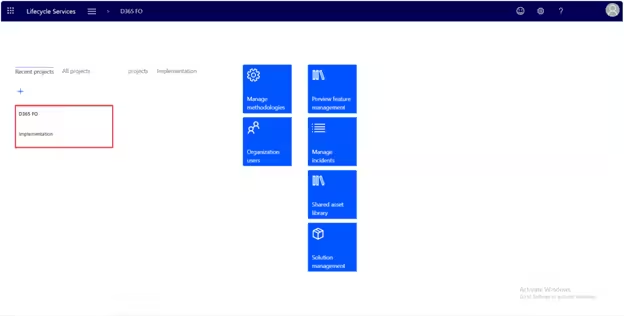
Step # 1: Verify Package in Asset Library
Ensure that your deployable package has been successfully uploaded to the LCS Asset Library (under Software deployable package) from your Azure DevOps build pipeline or local build VM:
Step # 2: Navigate to Target UAT Environment
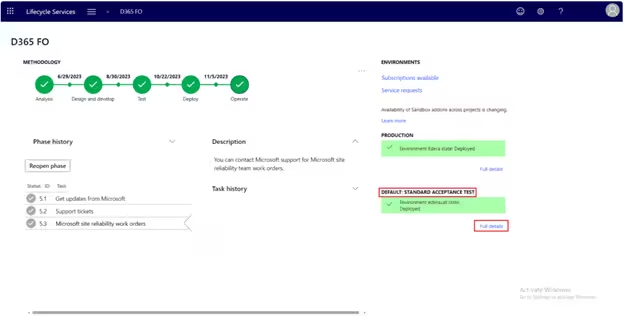
Open your LCS implementation project, select Environment Details, and choose your Standard Acceptance Testing (UAT) environment:
Step # 3: Verify Environment Health Status
Prior to initiating servicing, confirm that the environment is in a healthy Deployed / Running status with no active batch or service locks:
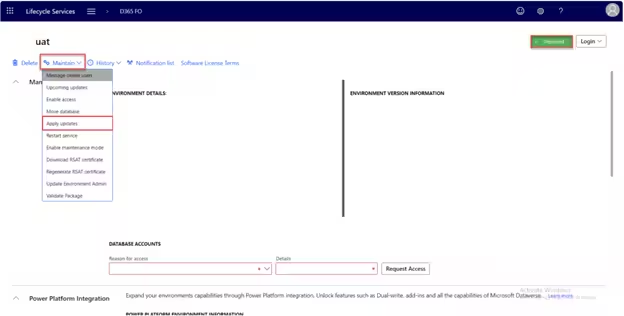
Step # 4: Apply Updates & Select Package
Click Maintain > Apply updates. Name the update operation, select your target package from the Asset Library list, and confirm:
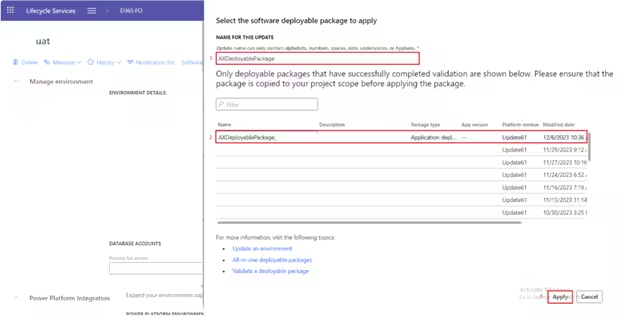
Monitoring Deployment & Final Verification
Step # 5: Monitoring the Servicing State
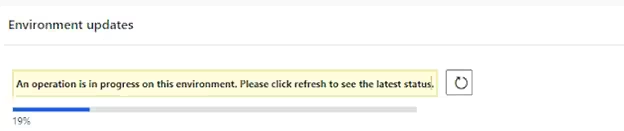
Once deployment begins, the environment enters the Servicing state. LCS displays real-time progress across runtime component installations and database synchronization:
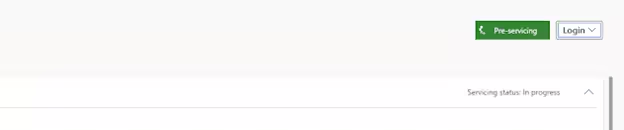
As soon as the deployment concludes successfully, the environment returns to a Deployed / Running state, ready for business user validation and regression testing: