- Dynamic Form Calculations: Using X++
displaymethods to compute and present calculated data on form grids and details tabs. - Client-Side Caching Optimization: Annotating display methods with
[SysClientCacheDataMethodAttribute(true)]to prevent redundant RPC calls. - Grid Limitations of Display Methods: Display methods on form grids cannot be filtered or sorted natively, and introduce row-by-row rendering lag.
- High-Performance View Alternative: Replacing expensive display methods with a SQL-backed AOT View joined directly to the form datasource.
- Full Sorting & Filtering: Query-backed view columns provide native database indexing, multi-column sorting, and instant user grid filtering.

Overview: Adding Fields to the VendTable Form
In this article, we will learn how to add a calculated field to the VendTable form in Dynamics 365 Finance & Operations using two contrasting approaches: the traditional display method and the scalable alternative using a database view.
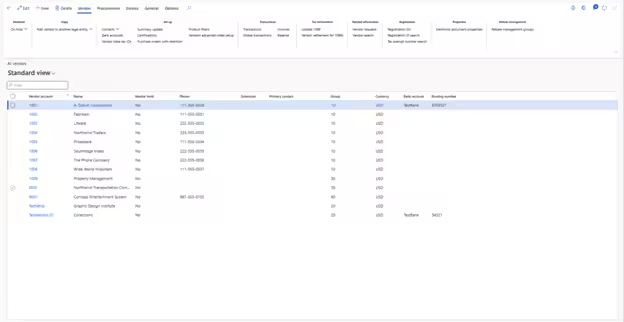
Navigation: Accounts payable > Vendors > All vendors
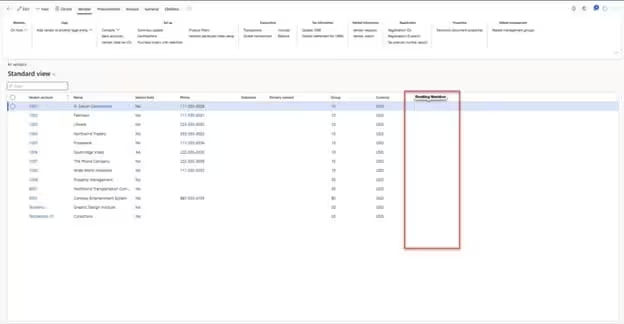
“While display methods are quick to implement for header details, using them on high-volume grids degrades performance. Database views restore native indexing, sorting, and filtering.”
Approach 1: Adding Field Using Display Method
Any method containing the display keyword as a modifier is an X++ display method. It calculates and returns values on the fly.
Step # 1: Create an extension of the table VendTable and define a cached display method:
[ExtensionOf(tableStr(VendTable))]
internal final class HMVendTable_Extension
{
    [SysClientCacheDataMethodAttribute(true)]
    public display Description vendDescription()
    {
        VendTable vendTable = this;
        return DirPartyTable::findRec(vendTable.Party).Name;
    }
}
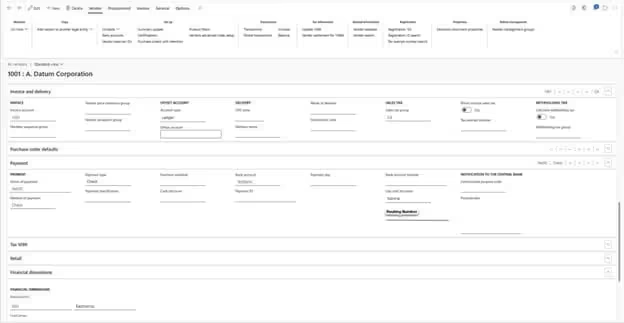
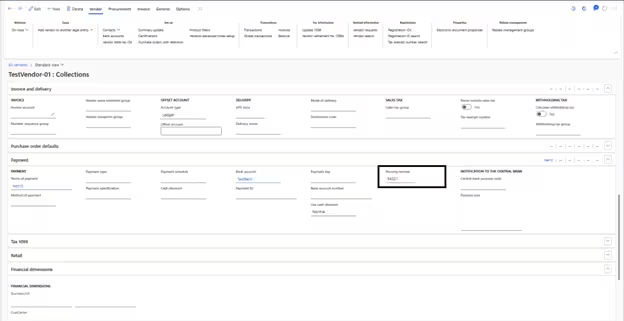
Step # 2: In the VendTable form extension, drag the vendDescription display method from the datasource into your grid or tab page:
Approach 2: High-Performance Alternative Using View
The Problem with Display Methods on Grids: When users scroll through thousands of rows, the client must execute the display method for every single record, creating substantial network roundtrips. More critically, users cannot filter or sort on display method columns.
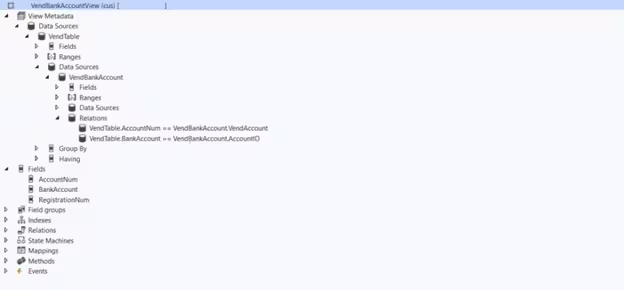
Step # 1: Create a new AOT View querying the source table (e.g. DirPartyTable) and expose the required field:
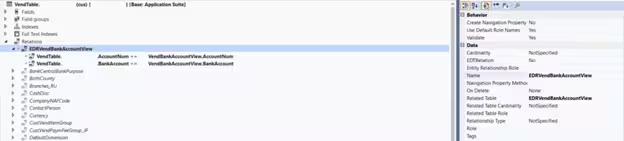
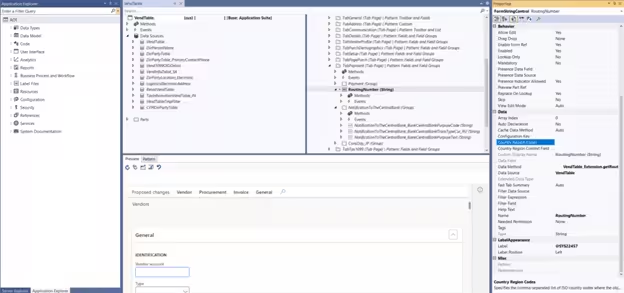
Step # 2: In the VendTable table extension, add a relationship linking VendTable.Party == YourView.Party:
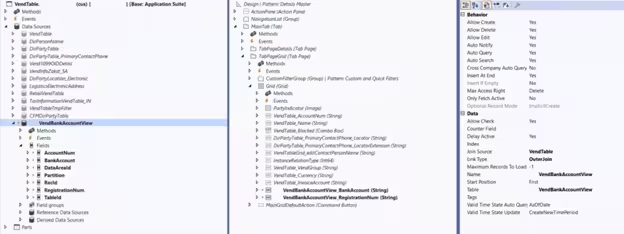
Step # 3: In the form extension, add the View as a joined datasource and drag the field directly into the grid: