- Commerce Development Backbone: The Retail SDK provides developers with all source samples, contracts, and scripts for customizing Store Commerce.
- Prerequisites Verification: Ensuring MSBuild, TypeScript runtime, and Visual Studio build dependencies are properly installed on the VM.
- Local Build Execution: Executing MSBuild against
dirs.projto compile Commerce Runtime (CRT), Hardware Station, and POS extensions. - Package Generation: Creating self-contained retail deployable packages for test and production cloud deployment.
- Transition to Sealed SDK: Aligning compilation workflows with modern sealed Microsoft Commerce SDK architectures.

Overview: What is the Retail SDK?
In Dynamics 365 Commerce, the Retail SDK contains the developer kits, code samples, and build automation scripts required to extend POS clients, the Commerce Runtime (CRT), Hardware Station, and the Commerce Scale Unit (CSU).
This guide walks through configuring and compiling the Retail SDK on a development virtual machine downloaded directly from Lifecycle Services (LCS).
“Mastering the Retail SDK build pipeline is fundamental for any enterprise retailer customizing POS cash registers, payment gateways, or custom fiscal printers.”
Prerequisites & Environment Setup
Before compiling the SDK, ensure your development virtual machine satisfies the following prerequisites:
- Visual Studio 2022 or 2019 with .NET desktop development and Node.js tools installed.
- MSBuild tools properly registered in the system environment PATH.
- Retail SDK extracted from LCS or the local VHD at
C:\RetailSDK.
Building the Retail SDK
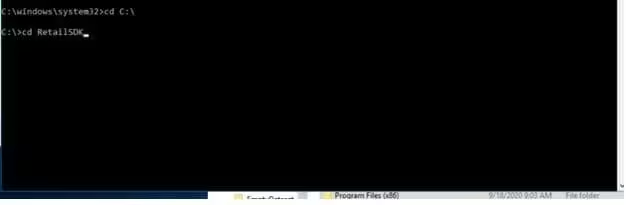
Open Developer Command Prompt for Visual Studio as Administrator. Navigate to your Retail SDK root directory:
cd C:\RetailSDK
msbuild dirs.proj /t:Rebuild /p:Configuration=Release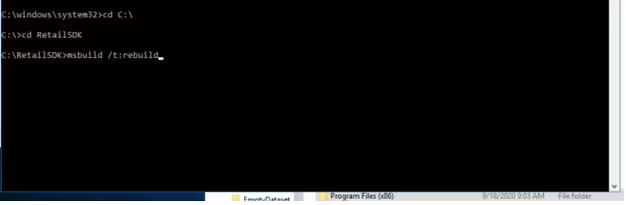
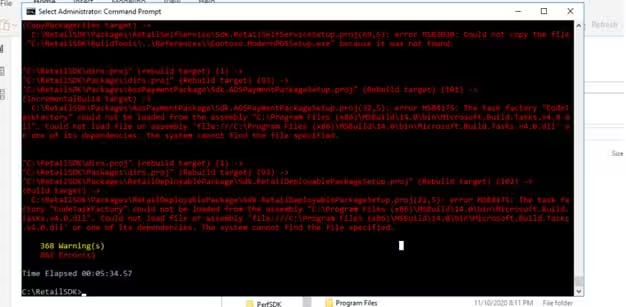
Once compilation completes, the output artifacts and deployable packages are located in the RetailSDK\Packages directory, ready to be uploaded to Lifecycle Services.