- Centralized API Gateway: Leveraging Azure API Management (APIM) as a unified facade for all external enterprise integrations.
- Shielding Core ERP Endpoints: Decoupling external ecommerce and mobile apps from direct Dynamics 365 F&O access.
- Traffic & Rate Policy Enforcement: Configuring rate limiting, quota policies, and response caching to prevent ERP denial-of-service.
- Subscription Key & OAuth Governance: Enforcing API subscription keys alongside JWT token validation from Microsoft Entra ID.
- Comprehensive Observability: Full telemetry, request logging, and error tracking via Azure Application Insights.

Understanding APIs & Enterprise Integration
An API acts as a secure messenger that translates requests between distinct applications, enabling them to work together cohesively.
The Enterprise Challenge: When integrating Dynamics 365 Finance and Operations (D365FO) data with external applications—such as public ecommerce storefronts or B2B customer portals—exposing backend ERP endpoints directly introduces severe security vulnerabilities, lack of throttling controls, and unpredictable server loads.
The Architectural Solution: Utilizing Azure API Management (APIM) creates a robust, managed gateway layer that securely proxies requests, enforces authentication, and isolates core ERP logic from the public internet.
“Azure APIM transforms fragile point-to-point ERP integrations into a governed, enterprise-grade API product with automated throttling, token verification, and real-time telemetry.”
Step 1: Creating an API Management Service Instance
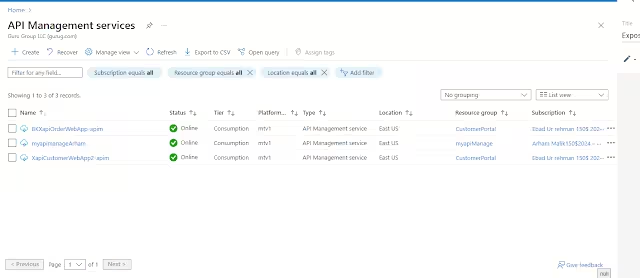
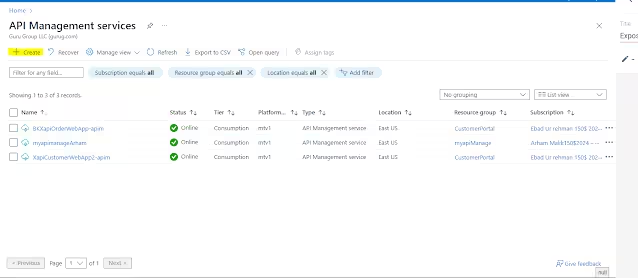
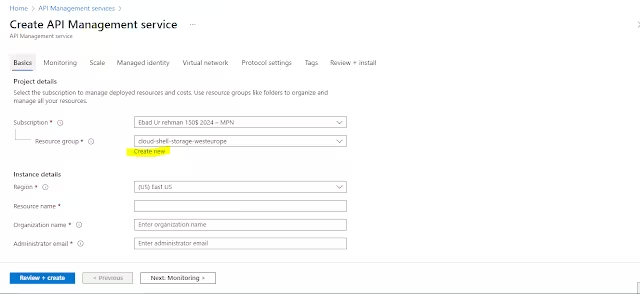
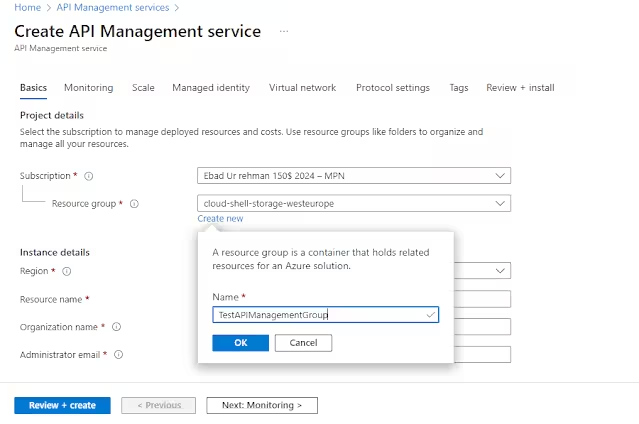
Log in to the Azure Portal, search for API Management Services, and click Create:
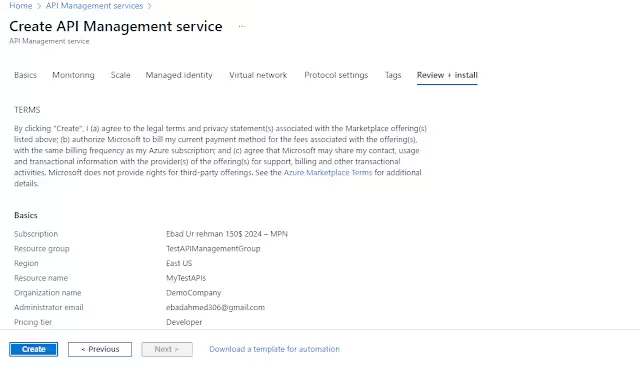
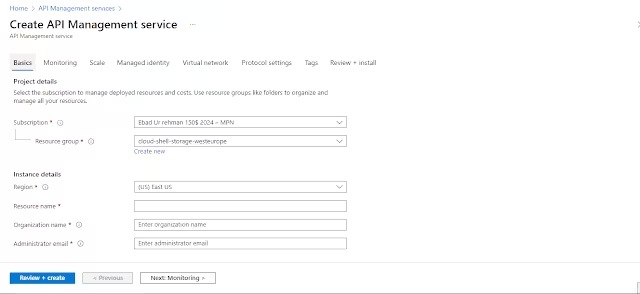
Configure the instance with your Resource Group, unique Service Name, Region, Organization name, and Administrator email:
Step 2: Importing and Publishing the API
Navigate to the APIs blade under your APIM instance. Select from OpenAPI, WSDL, or manual HTTP endpoints to define your proxy route to the D365FO custom service:
Step 3: Enforcing Inbound Security Policies
In the APIM Policy Designer, configure inbound XML policies to enforce Rate Limiting by Key (protecting backend ERP capacity) and JWT Token Validation:
<inbound>
    <base />
    <rate-limit-by-key calls="100" renewal-period="60" counter-key="@(context.Subscription.Id)" />
    <validate-jwt header-name="Authorization" failed-validation-httpcode="401" failed-validation-error-message="Unauthorized Access">
        <openid-config url="https://login.microsoftonline.com/[TenantId]/.well-known/openid-configuration" />
        <required-claims>
            <claim name="aud">
                <value>[YourD365AppID]</value>
            </claim>
        </required-claims>
    </validate-jwt>
</inbound>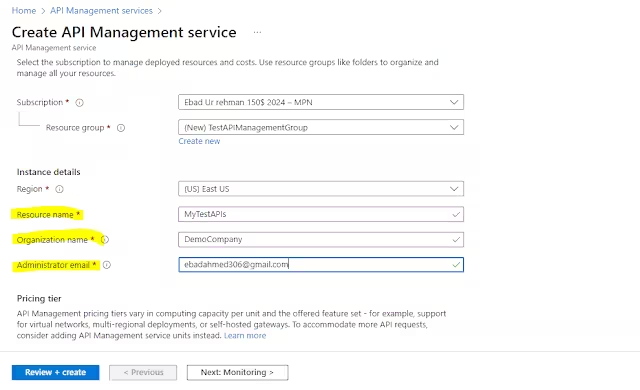
Step 4: Testing & Monitoring in APIM Console
Use the built-in Test console in APIM to issue live requests, verify subscription key enforcement, review HTTP 200 OK payloads, and trace execution latency: