
- ER Lifecycle Governance: Understanding the four discrete configuration states: Draft, Completed, Shared, and Discontinued.
- Draft Execution Flag: Overcoming standard behavior where only Completed configurations run in business forms.
- User-Level Debugging: Enabling 'Run draft' under Electronic Reporting user parameters for rapid iterative development.
- Zero-Disruption Testing: Validating work-in-progress formats and mappings without prematurely completing or locking versions.
- Promotion to Production: Transitioning finalized configurations to Completed and publishing to the Global Repository.

Electronic Reporting Configuration Lifecycle
In Dynamics 365 Finance & Operations, Electronic Reporting configurations progress through four distinct lifecycle states:
Draft Status
Users can modify data models, mappings, and formats. By default, draft versions cannot be executed on production forms unless specifically enabled by parameters.
Completed Status
The configuration is locked and ready for production use. The most recently completed version is automatically selected by standard ERP processes.
Shared Status
Activated only on Completed configurations. The package is published to the Global Repository (LCS or RCS) for tenant-wide or external distribution.
Discontinued Status
Marks a shared configuration as deprecated, allowing administrators to safely retire and delete it from the system.
“Enabling the Run Draft parameter accelerates ER development cycles by allowing developers to test live report outputs without creating dozens of dummy completed versions.”
Running Electronic Reports in Draft Status
By default, when a user triggers an Electronic Report from an application form (such as Free Text Invoice or Customer Account Statement), D365FO executes the latest Completed version.
To execute your work-in-progress draft version during development, navigate to:
Organization administration > Workspaces > Electronic reporting
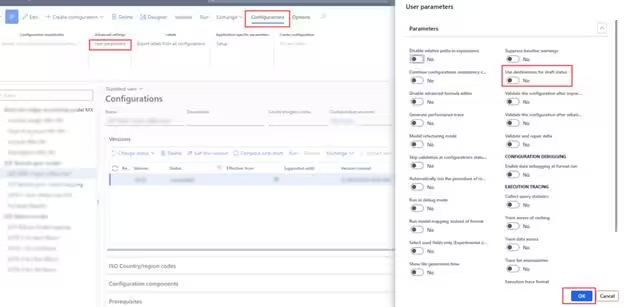
Open Electronic reporting parameters, navigate to the User preferences tab, and toggle the Run draft setting to Yes:
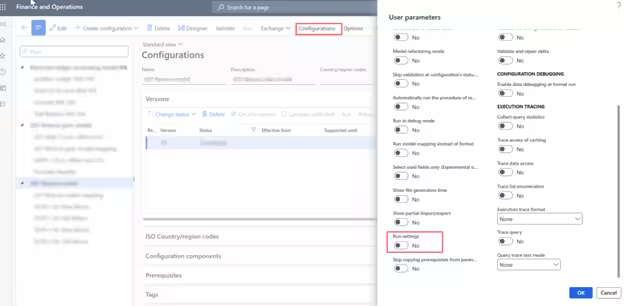
Once enabled, running the report from the business form will automatically execute your active Draft version, allowing you to preview formula calculations and layout bindings instantly.
Promoting Configurations to Completed Status
After validating your draft report output, change the configuration status from Draft to Completed:
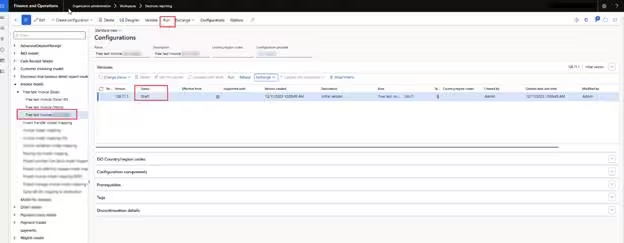
The configuration is now locked and ready for deployment to user acceptance testing (UAT) and production environments.