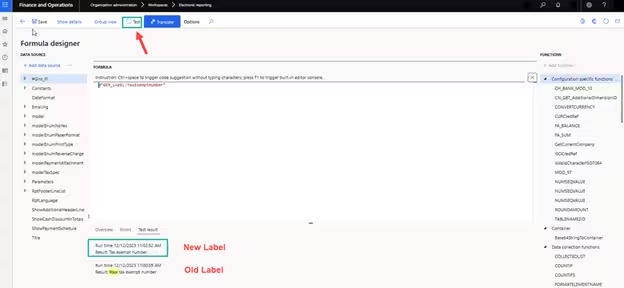
- Multilingual Report Standardization: Implementing translatable label references across Electronic Reporting data models and formats.
- Formula Designer Integration: Using the
Edit formulaworkspace to bind label variables to output document cells and XML nodes. - Translate Sidebar Workflow: Searching existing ER labels or creating new label IDs with localized translations directly in the designer.
- Runtime Language Switching: Dynamically rendering customer or vendor native languages based on document language codes.
- Designer Verification: Testing formula evaluations and label resolution directly within the ER formula test tool.

Overview: Multilingual Business Documents
In global business environments, invoices, purchase orders, and payment advices must dynamically adapt to the language of the recipient.
Electronic Reporting (ER) provides a dedicated translation and label mechanism that replaces hardcoded text strings with dynamic label IDs, automatically translating documents according to the customer or vendor language context.
“Hardcoding text in ER templates limits document reuse. Utilizing ER label IDs ensures a single format configuration serves global operations in dozens of languages.”
Step-by-Step Label Configuration
Step 1: Open Formula Designer
Select the label or text field in the ER format designer, navigate to the Mapping tab, and click Edit formula:
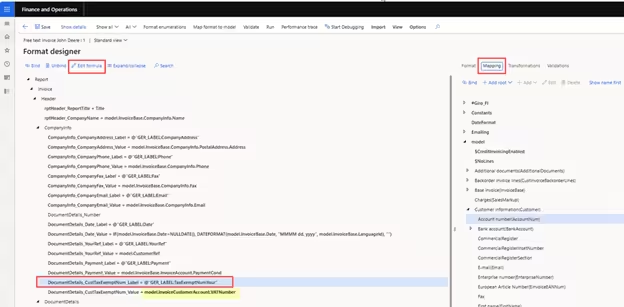
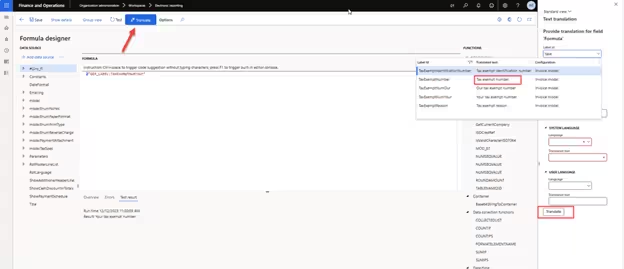
Step 2: Translate Panel & Label Creation
Click on the Translate button in the formula designer toolbar. A side panel opens allowing you to search for existing system labels or create a new custom label ID:
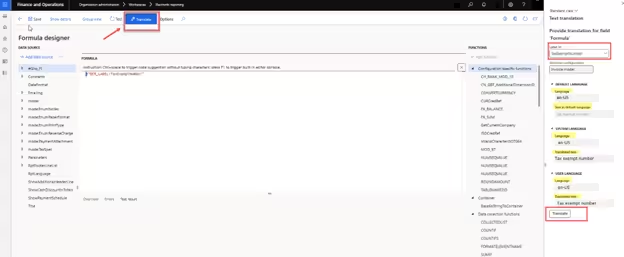
Step 3: Define Label ID & Translations
If the label does not already exist, set a new Label ID, enter the default text, and provide translations for each required language:
Testing Label Evaluation
You can test the resolution of the newly created label by clicking the Test button in the formula designer and supplying test context parameters: