
- Automated Integrity Auditing: The ER designer's built-in validation engine detects syntax, binding, and sequence flaws prior to runtime.
- Range Sequence Conflicts: Resolving Excel template range hierarchy mismatches manually or using the automated 'Fix' action.
- Missing Excel Named Ranges: Reconciling workbook Named Ranges with the ER format designer tree structure.
- Unbound Schema Nodes: Identifying and binding orphan model fields in the Model Mapping designer.
- Conditional Visibility Rules: Preventing blank headers and orphan labels from rendering when query datasets return empty.

Overview: Understanding ER Validation Diagnostics
When authoring custom data models, model mappings, and Excel or XML formats in Electronic Reporting (ER), clicking the Validate button evaluates your configuration for structural inconsistencies, broken bindings, or missing template coordinates.
Resolving these diagnostics is mandatory before changing a configuration’s status to Completed.
“Validating ER configurations before promotion eliminates runtime generation failures, ensuring financial documents render reliably for business operators.”
1. Range Sequencing Warnings
Diagnostic: “The sequence of nested Excel range components does not match the cell hierarchy of the attached template.”
Resolution: In the format tree, manually move components up or down to align with the Excel cell sequence, or click the Fix button in the validation pane to automatically reorder elements:
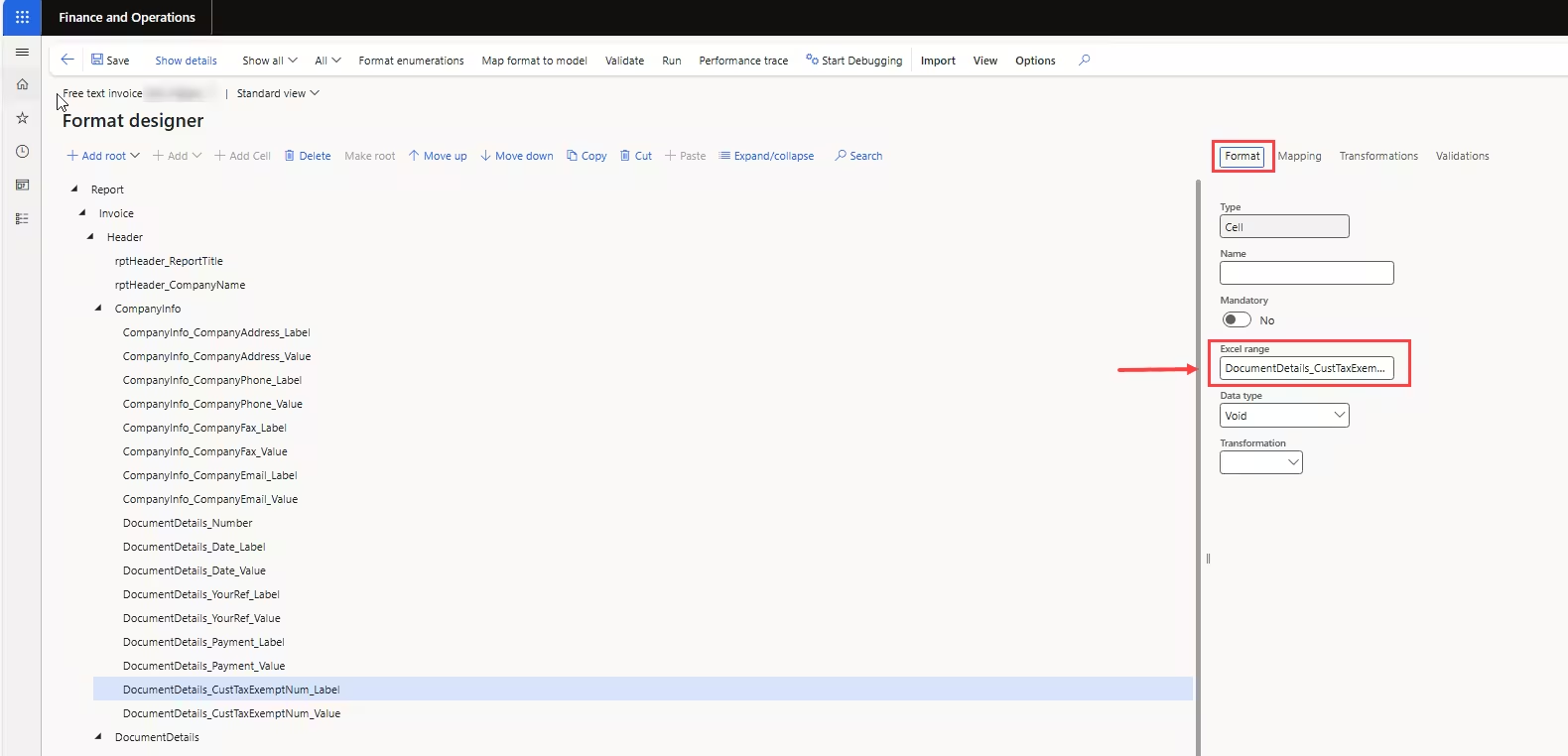
2. Excel Range Does Not Exist
Diagnostic: “Excel range 'xxx' does not exist in the attached template.”
Resolution: Open the attached Excel workbook, navigate to Formulas > Name Manager, verify the spelling of the named range, or create the missing range and re-uploads the template:
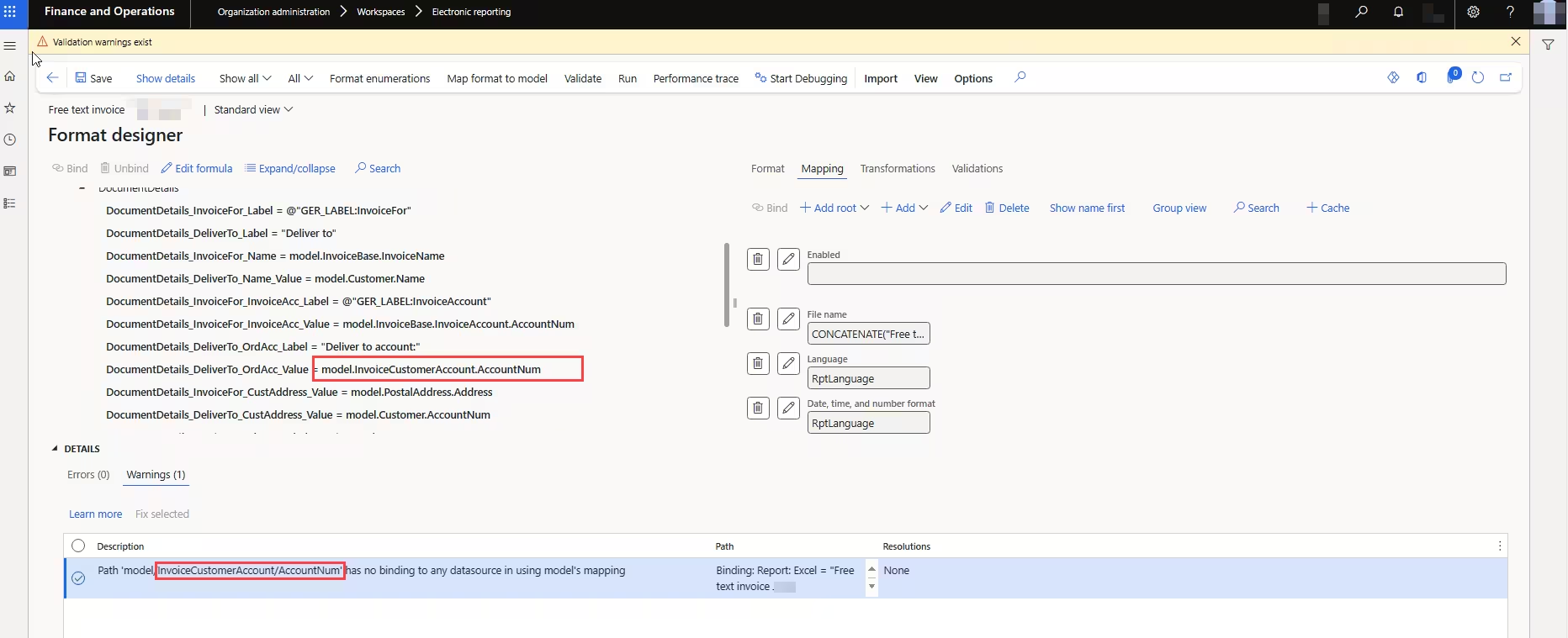
3. No Binding to Data Source
Diagnostic: “Path 'xxx' has no binding to any data source in the active model mapping.”
Resolution: Open the Model to datasource mapping designer. Locate the unmapped field, identify its corresponding ERP table or calculated expression, and click Bind:
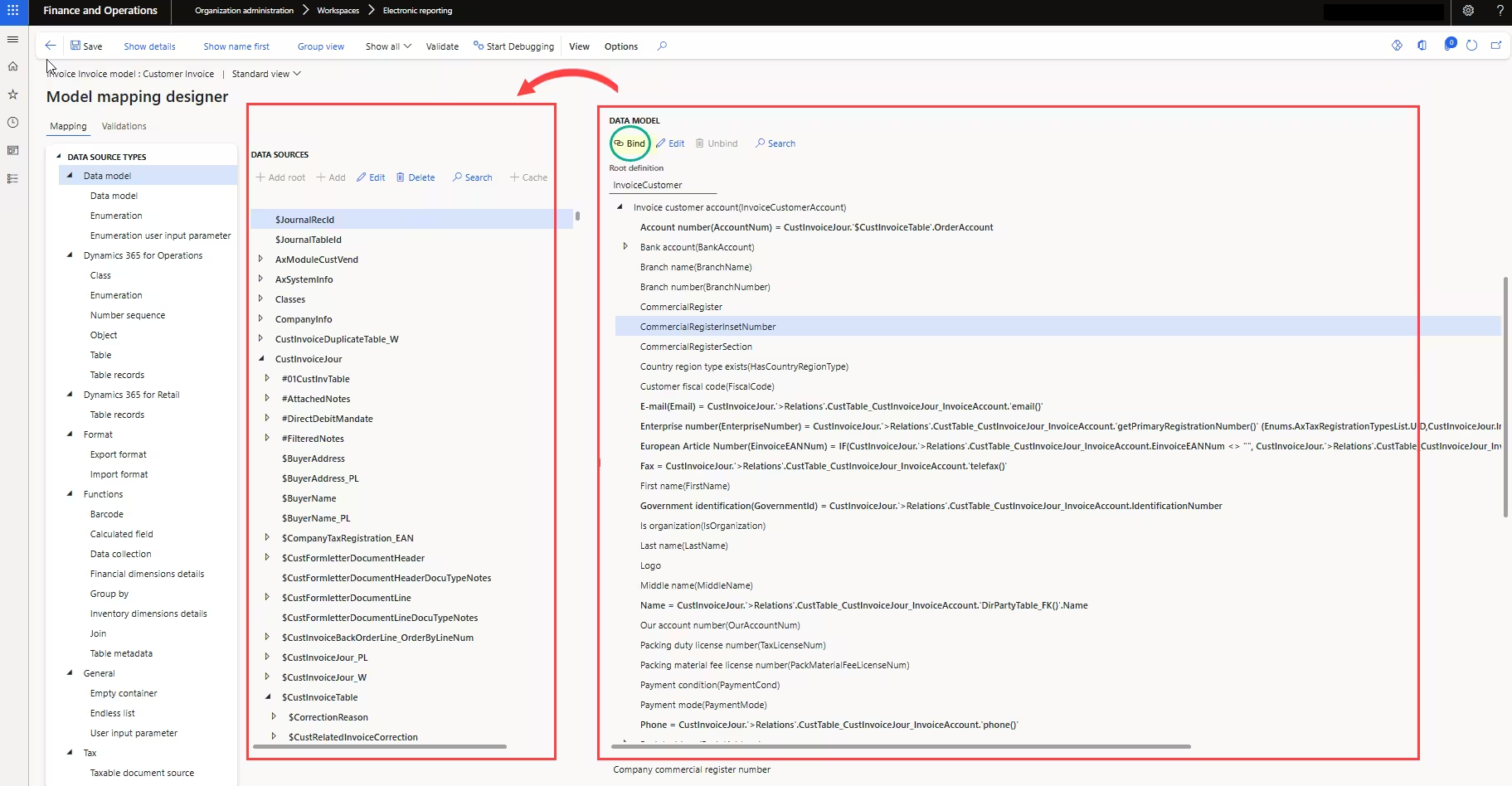
4. Labels Displaying on Null Records
Scenario: Report headers or section labels continue to print even when the transaction record list is empty.
Resolution: In the Format Designer, select the label component, open the Enabled formula property, and bind an expression checking NOT(ISEMPTY(RecordList)) so the element only renders when records exist: